> ## Documentation Index
> Fetch the complete documentation index at: https://docs.qa.tech/llms.txt
> Use this file to discover all available pages before exploring further.
# Status Badges
> Visual indicators for your project test status
# Status Badges
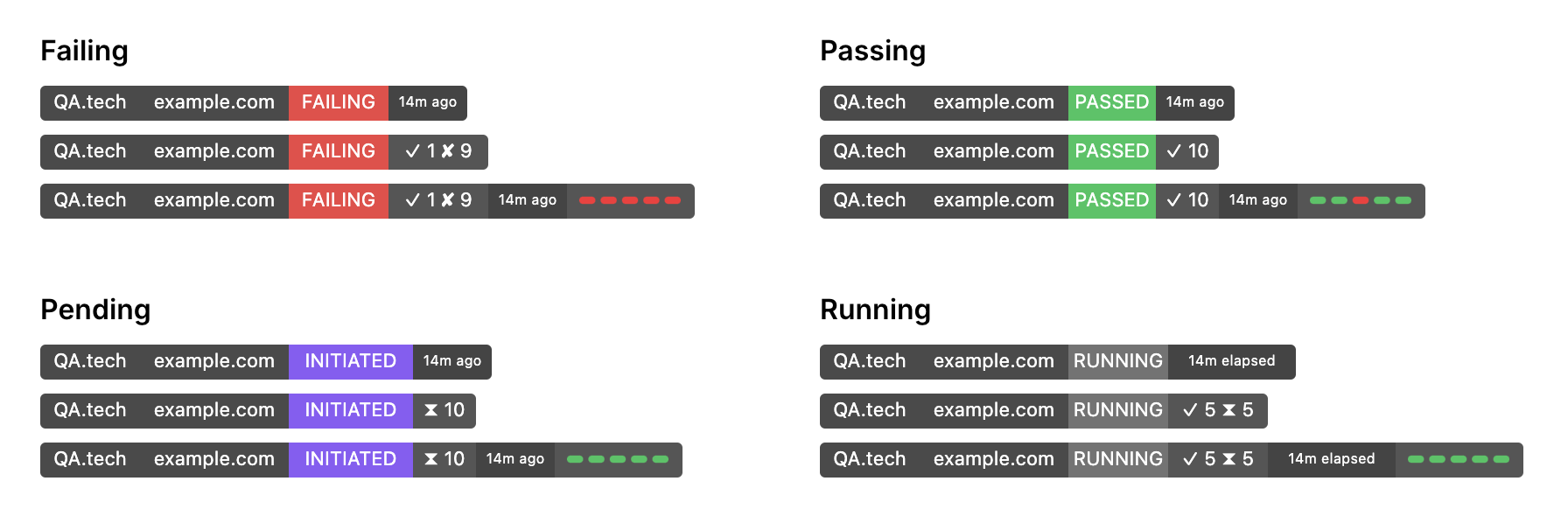
Status badges are visual indicators that show the current state of your QA tests. They automatically update whenever new tests are run, providing real-time feedback on your project's quality.
 ## What are Status Badges?
Status badges display the current status of your QA tests in a simple, visual format. They can indicate whether tests are passing, failing, or were skipped based on your most recent test run.
## Test Plan Integration
Status badges work seamlessly with test plans. You can:
* Create separate badges for different test plans
* Track the health of specific workflows or features
* Monitor critical paths independently from other tests
* Set up dedicated badges for development, staging, and production environments
## Getting Started
Navigate to [**Settings →
Integrations**](https://app.qa.tech/current-project/settings/integrations?focus=status-badge).
Find the **Status Badge** section and toggle it to enable.
Select which test plan to track with your badge and customize the appearance
options as needed.
Copy the generated Markdown, HTML, or URL code to embed the badge in your
README, documentation, or website.
## What are Status Badges?
Status badges display the current status of your QA tests in a simple, visual format. They can indicate whether tests are passing, failing, or were skipped based on your most recent test run.
## Test Plan Integration
Status badges work seamlessly with test plans. You can:
* Create separate badges for different test plans
* Track the health of specific workflows or features
* Monitor critical paths independently from other tests
* Set up dedicated badges for development, staging, and production environments
## Getting Started
Navigate to [**Settings →
Integrations**](https://app.qa.tech/current-project/settings/integrations?focus=status-badge).
Find the **Status Badge** section and toggle it to enable.
Select which test plan to track with your badge and customize the appearance
options as needed.
Copy the generated Markdown, HTML, or URL code to embed the badge in your
README, documentation, or website.