> ## Documentation Index
> Fetch the complete documentation index at: https://docs.qa.tech/llms.txt
> Use this file to discover all available pages before exploring further.
# Email Inbox
> Access and manage test emails during automated testing
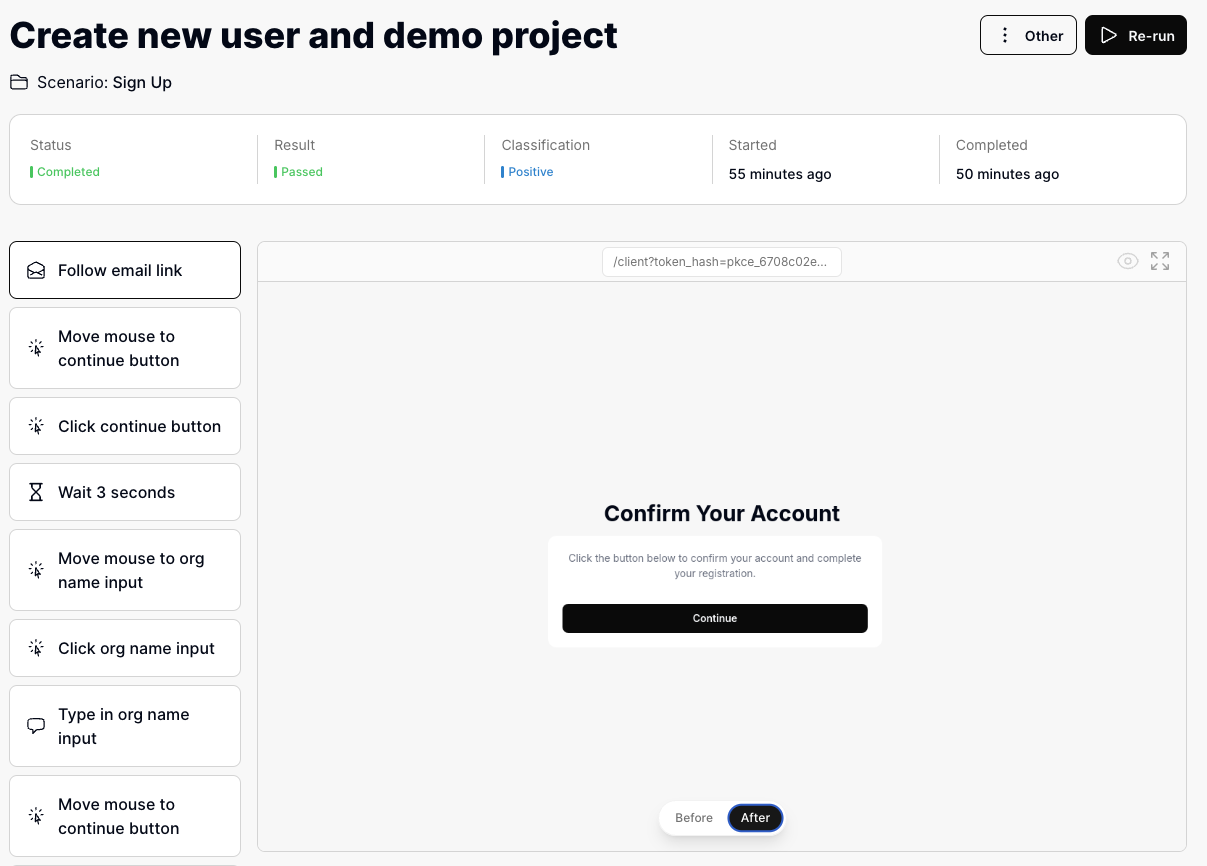 During test execution, the AI agent has access to an email inbox that can receive and process emails. This is useful for testing features like:
* Account verification
* Password reset flows
* Email notifications
* Newsletter subscriptions
## How It Works
The inbox feature is powered by a direct integration with our email backend. When a test step requires checking email (e.g., "Wait for the welcome email"), the agent queries the inbox system directly.
* **Polling**: The agent polls for new emails for up to **3 minutes**. If no matching email is found within this time, the step fails.
* **No Pagination**: The system always looks for the **newest** email that matches your criteria. It does not support pagination or "get more" requests.
* **Text-Only View**: The agent sees a text summary of the email (subject, match reason, attachment summary), not the raw HTML or JSON.
### What the Agent Can Do
The agent interacts with the inbox in three specific ways:
| Action | Example Test Step | What the Agent Does |
| :----------------- | :---------------------------------------------- | :---------------------------------------------------------------------------------------------------------------- |
| **Verify Receipt** | "Verify that a confirmation email was received" | Checks the inbox for a matching email and confirms its arrival. It sees the subject and a summary of attachments. |
| **Click Link** | "Click the 'Reset Password' link in the email" | Finds the newest matching email, locates the link described in your step, and navigates the browser to it. |
| **Get Code (OTP)** | "Get the verification code from the email" | Finds the email and extracts the One-Time Password (OTP) or verification code to use in the test. |
### Filtering & Matching
To find the right email, the system uses strict filtering and natural language matching:
* **Recipient**: Emails are strictly filtered by the `to_address`. The agent only sees emails sent to the specific address configured for the test.
* **Content Matching**: The agent uses your natural language query (e.g., "password reset email") to match against the subject, body, and attachments.
* **Time Window**: The system enforces a strict time cursor based on **when the test run started**.
* The agent can *only* see emails received **after** the test execution began.
* Emails received before the test started are invisible to the agent.
## Email Configs
QA.tech provides these system email configurations by default:
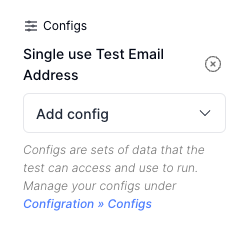
* **Single use Test Email Address** - New generated email for each test (can be re-used by having another test depend on the first)
* **Project e-mail address** - Static email always accessible for the project
**To use custom email addresses for testing:**
1. Navigate to Settings » Configs
2. Select "Email Inbox" type
3. Configure the email settings
4. Save the configuration
5. Add the config to your test case settings
During test execution, the AI agent has access to an email inbox that can receive and process emails. This is useful for testing features like:
* Account verification
* Password reset flows
* Email notifications
* Newsletter subscriptions
## How It Works
The inbox feature is powered by a direct integration with our email backend. When a test step requires checking email (e.g., "Wait for the welcome email"), the agent queries the inbox system directly.
* **Polling**: The agent polls for new emails for up to **3 minutes**. If no matching email is found within this time, the step fails.
* **No Pagination**: The system always looks for the **newest** email that matches your criteria. It does not support pagination or "get more" requests.
* **Text-Only View**: The agent sees a text summary of the email (subject, match reason, attachment summary), not the raw HTML or JSON.
### What the Agent Can Do
The agent interacts with the inbox in three specific ways:
| Action | Example Test Step | What the Agent Does |
| :----------------- | :---------------------------------------------- | :---------------------------------------------------------------------------------------------------------------- |
| **Verify Receipt** | "Verify that a confirmation email was received" | Checks the inbox for a matching email and confirms its arrival. It sees the subject and a summary of attachments. |
| **Click Link** | "Click the 'Reset Password' link in the email" | Finds the newest matching email, locates the link described in your step, and navigates the browser to it. |
| **Get Code (OTP)** | "Get the verification code from the email" | Finds the email and extracts the One-Time Password (OTP) or verification code to use in the test. |
### Filtering & Matching
To find the right email, the system uses strict filtering and natural language matching:
* **Recipient**: Emails are strictly filtered by the `to_address`. The agent only sees emails sent to the specific address configured for the test.
* **Content Matching**: The agent uses your natural language query (e.g., "password reset email") to match against the subject, body, and attachments.
* **Time Window**: The system enforces a strict time cursor based on **when the test run started**.
* The agent can *only* see emails received **after** the test execution began.
* Emails received before the test started are invisible to the agent.
## Email Configs
QA.tech provides these system email configurations by default:
* **Single use Test Email Address** - New generated email for each test (can be re-used by having another test depend on the first)
* **Project e-mail address** - Static email always accessible for the project
**To use custom email addresses for testing:**
1. Navigate to Settings » Configs
2. Select "Email Inbox" type
3. Configure the email settings
4. Save the configuration
5. Add the config to your test case settings
 ### Supported Email Types
The inbox feature only works with emails managed by the QA.tech system.
| Config Type | Behavior | Inbox Access |
| :------------------- | :------------------------------------------------------------------ | :----------- |
| **Single Use** | Generates a unique email for **each test run**. Best for isolation. | ✅ Yes |
| **Fixed / Project** | Uses a stable email address. Good for whitelisting. | ✅ Yes |
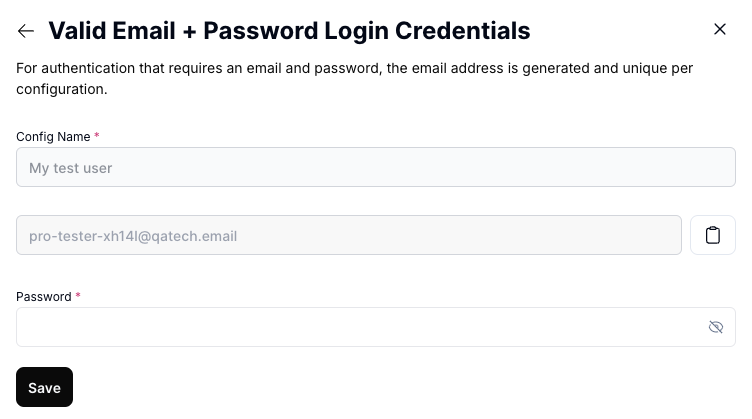
| **Email + Password** | Generates a unique email **once per config**. | ✅ Yes |
| **External Email** | Using your own Gmail/Outlook address in a test step. | ❌ No |
**External emails are not supported.** The agent cannot access personal
inboxes like Gmail or Outlook. You must use a system-generated email config
for the agent to read emails.
### Whitelisting Email Addresses
If your application restricts which email addresses can sign up, receive mail, or pass spam filters, you need to allow QA.tech test addresses.
**Whitelist the `@qatech.email` domain.** All QA.tech-generated test addresses and all outgoing emails from QA.tech use this domain. Allowing the whole domain covers every address your tests may use, including:
* Project emails (`prj-xxxxx@qatech.email`)
* Magic link login emails (`magic-login-xxxxx@qatech.email`)
* Single-use addresses generated per test run (for example, `test-automation-abc123@qatech.email`)
Where to add the allowlist depends on your setup:
* **Signup or registration restrictions** — Allow `@qatech.email` so test accounts can be created.
* **Email server or gateway filters** — Allow inbound mail to `@qatech.email` so verification, password reset, and notification emails reach the test inbox.
* **Spam or security tools** — Allow outbound mail from `@qatech.email` so messages sent by QA.tech are not blocked or quarantined.
For a stable address you can add to a fixed allowlist, use a **Fixed /
Project** email config. Single-use addresses change on every run, so they are
harder to pre-approve.
## Using Email Inbox in Tests
1. Create or edit a test case
2. Under the Settings tab, select the email config to use
3. The test will now have access to the email inbox
### Supported Email Types
The inbox feature only works with emails managed by the QA.tech system.
| Config Type | Behavior | Inbox Access |
| :------------------- | :------------------------------------------------------------------ | :----------- |
| **Single Use** | Generates a unique email for **each test run**. Best for isolation. | ✅ Yes |
| **Fixed / Project** | Uses a stable email address. Good for whitelisting. | ✅ Yes |
| **Email + Password** | Generates a unique email **once per config**. | ✅ Yes |
| **External Email** | Using your own Gmail/Outlook address in a test step. | ❌ No |
**External emails are not supported.** The agent cannot access personal
inboxes like Gmail or Outlook. You must use a system-generated email config
for the agent to read emails.
### Whitelisting Email Addresses
If your application restricts which email addresses can sign up, receive mail, or pass spam filters, you need to allow QA.tech test addresses.
**Whitelist the `@qatech.email` domain.** All QA.tech-generated test addresses and all outgoing emails from QA.tech use this domain. Allowing the whole domain covers every address your tests may use, including:
* Project emails (`prj-xxxxx@qatech.email`)
* Magic link login emails (`magic-login-xxxxx@qatech.email`)
* Single-use addresses generated per test run (for example, `test-automation-abc123@qatech.email`)
Where to add the allowlist depends on your setup:
* **Signup or registration restrictions** — Allow `@qatech.email` so test accounts can be created.
* **Email server or gateway filters** — Allow inbound mail to `@qatech.email` so verification, password reset, and notification emails reach the test inbox.
* **Spam or security tools** — Allow outbound mail from `@qatech.email` so messages sent by QA.tech are not blocked or quarantined.
For a stable address you can add to a fixed allowlist, use a **Fixed /
Project** email config. Single-use addresses change on every run, so they are
harder to pre-approve.
## Using Email Inbox in Tests
1. Create or edit a test case
2. Under the Settings tab, select the email config to use
3. The test will now have access to the email inbox
 ## Manual Access
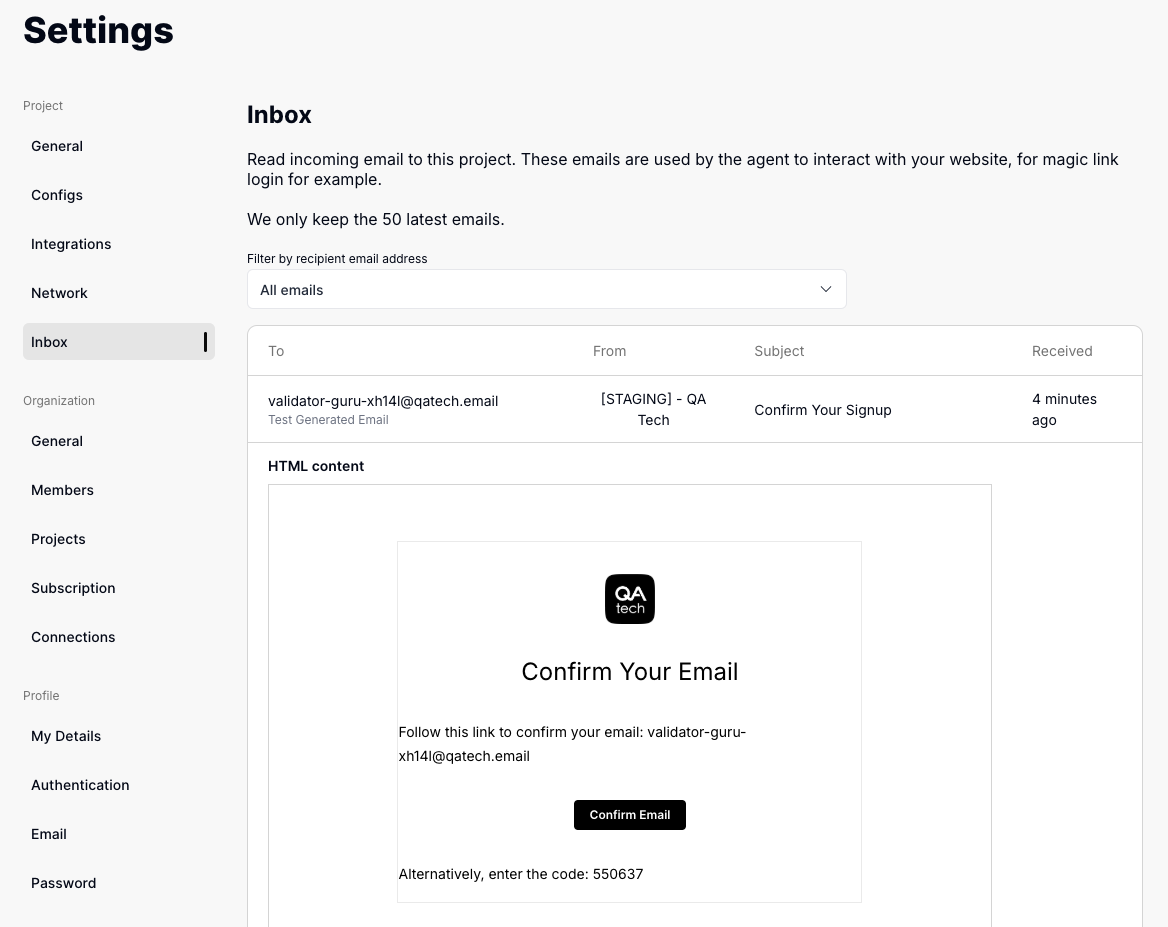
You can view test emails manually:
1. Go to Settings
2. Select Email Inbox
3. View all received test emails
## Manual Access
You can view test emails manually:
1. Go to Settings
2. Select Email Inbox
3. View all received test emails
 ## Important Considerations
* **Shared Inboxes**: If multiple tests use the same email inbox simultaneously (e.g., two password reset tests), emails may get mixed up. Use separate email configs for concurrent tests.
* **Sharing Emails Between Tests**: If Test B needs to check an email triggered by Test A:
* **Output Values**: In Test A, save the email address as an Output Value. In Test B, use that value to tell the agent which inbox to check.
* **Shared Configs**: If using a Fixed/Project email, both tests can use the same config. Be mindful of the time window (Test B must start *before* the email arrives, or you must trigger the email *during* Test B).
* **Cross-Test Limitations**: Because of the strict time window, a test cannot see emails that arrived *before* it started.
* If Test A triggers an email and finishes, and then Test B starts and tries to read that email, Test B will fail to find it.
* **Solution**: Combine the trigger and verification into the same test, or ensure the email is triggered *after* the verification test starts (e.g., using dependencies where the second test triggers the resend).
* **Timeout**: The agent will wait up to **3 minutes** for expected emails before failing.
* **Extending the wait**: You can add explicit "Wait" steps (e.g., "Wait 2 minutes") before the email check. Since the inbox cursor is fixed at the start of the test run, waiting *before* checking effectively extends the window for receiving emails.
* **Invitation Links** Since the browser state will be kept when opening the email you should log out after inviting a user to avoid that the invitation link redirects to the inviters account.
## Important Considerations
* **Shared Inboxes**: If multiple tests use the same email inbox simultaneously (e.g., two password reset tests), emails may get mixed up. Use separate email configs for concurrent tests.
* **Sharing Emails Between Tests**: If Test B needs to check an email triggered by Test A:
* **Output Values**: In Test A, save the email address as an Output Value. In Test B, use that value to tell the agent which inbox to check.
* **Shared Configs**: If using a Fixed/Project email, both tests can use the same config. Be mindful of the time window (Test B must start *before* the email arrives, or you must trigger the email *during* Test B).
* **Cross-Test Limitations**: Because of the strict time window, a test cannot see emails that arrived *before* it started.
* If Test A triggers an email and finishes, and then Test B starts and tries to read that email, Test B will fail to find it.
* **Solution**: Combine the trigger and verification into the same test, or ensure the email is triggered *after* the verification test starts (e.g., using dependencies where the second test triggers the resend).
* **Timeout**: The agent will wait up to **3 minutes** for expected emails before failing.
* **Extending the wait**: You can add explicit "Wait" steps (e.g., "Wait 2 minutes") before the email check. Since the inbox cursor is fixed at the start of the test run, waiting *before* checking effectively extends the window for receiving emails.
* **Invitation Links** Since the browser state will be kept when opening the email you should log out after inviting a user to avoid that the invitation link redirects to the inviters account.