> ## Documentation Index
> Fetch the complete documentation index at: https://docs.qa.tech/llms.txt
> Use this file to discover all available pages before exploring further.
# File Uploads
> Testing file uploads with default and custom files
This page covers how the AI agent handles file upload interactions **during test execution** - such as testing file input forms, drag-and-drop upload areas, or document import features in your application.
Looking to provide context documents to the AI during test creation? See
[Uploading Files and
Documents](/core-concepts/ai-chat-assistant#uploading-files-and-documents) for
uploading PDFs and specs to chat conversations.
## Default Test Files
QA.tech provides two default test files that are available for all tests:
* **cat.pdf** - A simple PDF document for testing PDF uploads
* **cat.jpg** - A standard image file for testing image uploads
These files are automatically available to the AI agent during test execution.
## Custom File Uploads
For testing specific file import features or custom file requirements, you can create file upload configs. Custom files are stored in Supabase storage and made available to the agent during test execution.
Go to **Settings → Configs** in your project dashboard
Click **Add config** and select **File Upload**
In the File Upload field, click to upload or drag and drop your test file
(max 250MB)
Enter a config name and click **Save**
Edit your test case, go to **Settings → Configs**, and select your file
upload config
### How Custom Files Work
When a test runs with a file upload config:
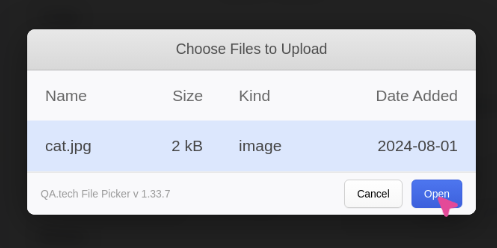
1. **File input elements**: When the agent clicks a file input (``), a custom file chooser UI appears showing:
* Your custom uploaded files from configs
* Default test files (cat.pdf, cat.jpg) if no custom files match
* Files are automatically filtered based on the input's `accept` attribute
2. **File selection**: The agent selects a file from the chooser UI, and the file is uploaded to your application
3. **File storage**: Custom files are stored in Supabase storage and downloaded to the browser session when needed
### Supported File Types
**Any file type is supported** - there are no MIME type or file extension restrictions. The File Upload config accepts files of any type up to 250MB in size. During test execution, files are filtered based on the HTML input element's `accept` attribute, so the agent will only use files that match your application's input restrictions.
### File Selector
Using javascript we catch the event that triggers a file selector and renders a custom file selector. This allows us to upload files from configs.
### Drag and Drop
The agent supports drag-and-drop file uploads for dropzone elements using the `selectFile` tool. When the agent encounters a dropzone (an element that accepts drag-and-drop events), it can dispatch a `drop` event with the file data.
**Current limitations:**
* Drag-and-drop support is currently limited to the default test files (cat.pdf, cat.jpg)
* Custom file uploads from configs work through file input elements (click to trigger the file chooser UI), not via drag-and-drop
* If you need to test drag-and-drop with custom files, use file input elements instead of dropzones
### File Type Restrictions
When your application has input restrictions (e.g., only accepting .csv files), our AI agent will automatically:
* Read the `accept` attribute from the HTML input element
* Filter available files to match the allowed MIME types, wildcards (e.g., `image/*`), or file extensions
* Only present files that match your application's restrictions in the file selector
This filtering ensures the agent only uses compatible files, even though the File Upload config accepts any file type.
 ### Drag and Drop
The agent supports drag-and-drop file uploads for dropzone elements using the `selectFile` tool. When the agent encounters a dropzone (an element that accepts drag-and-drop events), it can dispatch a `drop` event with the file data.
**Current limitations:**
* Drag-and-drop support is currently limited to the default test files (cat.pdf, cat.jpg)
* Custom file uploads from configs work through file input elements (click to trigger the file chooser UI), not via drag-and-drop
* If you need to test drag-and-drop with custom files, use file input elements instead of dropzones
### File Type Restrictions
When your application has input restrictions (e.g., only accepting .csv files), our AI agent will automatically:
* Read the `accept` attribute from the HTML input element
* Filter available files to match the allowed MIME types, wildcards (e.g., `image/*`), or file extensions
* Only present files that match your application's restrictions in the file selector
This filtering ensures the agent only uses compatible files, even though the File Upload config accepts any file type.
### Drag and Drop
The agent supports drag-and-drop file uploads for dropzone elements using the `selectFile` tool. When the agent encounters a dropzone (an element that accepts drag-and-drop events), it can dispatch a `drop` event with the file data.
**Current limitations:**
* Drag-and-drop support is currently limited to the default test files (cat.pdf, cat.jpg)
* Custom file uploads from configs work through file input elements (click to trigger the file chooser UI), not via drag-and-drop
* If you need to test drag-and-drop with custom files, use file input elements instead of dropzones
### File Type Restrictions
When your application has input restrictions (e.g., only accepting .csv files), our AI agent will automatically:
* Read the `accept` attribute from the HTML input element
* Filter available files to match the allowed MIME types, wildcards (e.g., `image/*`), or file extensions
* Only present files that match your application's restrictions in the file selector
This filtering ensures the agent only uses compatible files, even though the File Upload config accepts any file type.