

notifyOn or disable Teams for a single run; they always use the project webhook URL.
Setup
1
Create a Workflow in Microsoft Teams
In Microsoft Teams, open the option menu on the channel where you want to receive notifications, then select Workflows from the menu.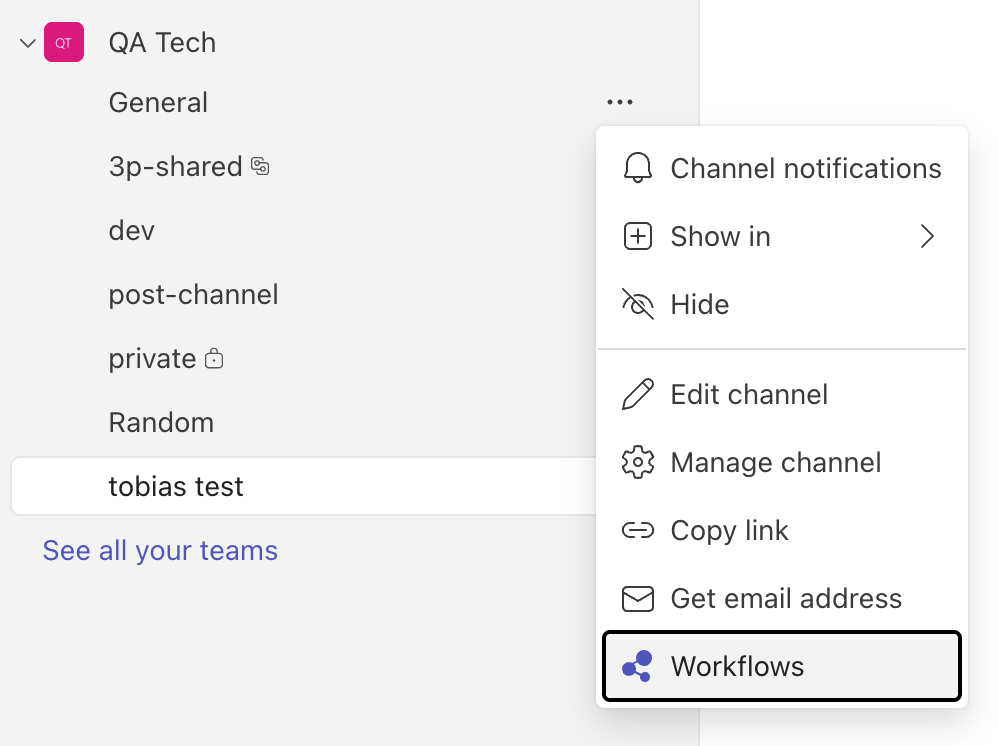
If the Workflows option is not available in your channel menu, you can also create the webhook workflow from the Workflows app in Microsoft Teams. Search for the “Send webhook alerts to a channel” template and follow the setup steps.
2
Configure in QA.tech
Go to Settings → Integrations in your QA.tech project. Find the Microsoft Teams section and paste the webhook URL you copied from Teams.Click Save to enable the integration.After saving, you can use the Send Test Notification button to verify your webhook is working correctly.
What You Get
Each notification includes:- Run status - Pass or fail indication
- Test plan name - If the run was part of a test plan
- Timing - When the run started and total duration
- Error tests - Breakdown of any tests that encountered errors
- Failed tests - Breakdown of any tests that failed
- Skipped tests - Breakdown of any tests that were skipped
- Results link - Direct link to the full test report in QA.tech
Troubleshooting
Notifications not appearing
- Verify the webhook URL is correct and hasn’t expired
- Check that the workflow in Microsoft Teams is still active
- Ensure the channel still exists and the workflow has permission to post
Need to update the webhook URL
If you need to regenerate or change your webhook URL:- Open the Workflows app in Microsoft Teams
- Find your webhook workflow and select Edit
- Expand the trigger “When a Teams webhook request is received” to copy the URL
- Update the URL in QA.tech under Settings → Integrations