

Testing a mobile app?
Native iOS and Android POCs have separate requirements: simulator or APK
builds, mobile IP ranges, and backend allowlisting. See the Mobile POC Setup
Checklist.
Quick checklist
Work through these in order. Network access usually takes the longest when IT is involved.Who verifies what
Environment
QA.tech needs a URL it can visit repeatedly without affecting production users. For a POC, use a staging, QA, or preview environment, not production. Pick an environment that mirrors the flows you want to evaluate. Staging or QA is the usual choice because it is stable, has test data, and carries lower risk than production. See Projects and Applications and Environments for how QA.tech organizes URLs. If the POC includes API-first journeys, add an API application in addition to the web app. Confirm the URL loads in a browser. If it is behind a VPN, firewall, or private network, complete Network access before running tests.Test data
QA.tech’s AI agent reads page content, forms, and emails during test runs. The environment must contain data that is safe to expose to an automated testing system.- No production PII. Do not point QA.tech at databases or environments containing real customer names, emails, phone numbers, addresses, payment details, or government IDs.
- No GDPR-sensitive data. Remove or anonymize personal data subject to GDPR or similar regulations. Scrubbed copies of production data are acceptable only after a documented anonymization process.
- Dedicated test accounts. Create accounts used exclusively for QA.tech. Never store real user credentials in Configs.
- Repeatable state. Tests should be able to run more than once without manual cleanup.
What to seed before the POC
Prepare data and accounts for the user journeys you plan to demonstrate:- Login accounts for each role you want to test (admin, standard user, and similar)
- Sample records the tests will create, edit, or delete (orders, projects, users)
- Feature flags or plan tiers needed to reach the flows under evaluation
- Third-party integration stubs or sandbox modes (payments, SMS, identity providers)
- Files for upload flows, using a File Upload config if the demo includes attachments
Network access
QA.tech test traffic originates from a fixed pool of outbound IP addresses. Your environment must allow connections from these IPs, or you must route traffic through an SSH tunnel or CLI tunnel.Public environments
If the staging URL is on the public internet:1
Get the current IP list
Copy the addresses from Settings →
Network or the Get
Outbound IPs API.
2
Allowlist the IPs
Add those addresses to your CDN, WAF, firewall, or IP allowlist.
3
Wait for propagation
Allow 5-10 minutes for CDN changes to propagate, then run a login test to
confirm access.
Private or VPN-protected environments
If the environment is not publicly reachable, choose one of these:- Set up an SSH Tunnel Proxy through a bastion or jump server. Allowlist QA.tech IPs on the bastion’s SSH port, and confirm the jump server can reach the application over HTTP or HTTPS.
- For a local or developer machine, expose the app with
qatech tunneland point the run at the tunnel URL.
Your team verifies
- The staging URL loads in a browser from outside your office network (or via the jump server)
- IT has applied the IP allowlist and changes have propagated
QA.tech verifies during setup
- The environment is reachable from QA.tech
- A navigation or login test completes without 403, timeout, or CAPTCHA errors
Email delivery
Many authentication and onboarding flows depend on email: account verification, password reset, OTP codes, and magic links. QA.tech provides built-in inboxes on the@qatech.email domain. Your application must be able to send mail to these addresses.
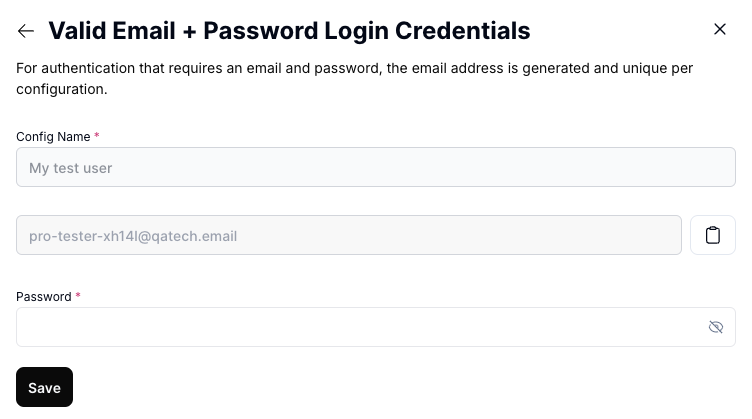
Allow @qatech.email
Allow the entire @qatech.email domain in:
- Signup and registration restrictions, so test accounts can be created
- Email server and gateway filters, so inbound mail reaches QA.tech inboxes
- Spam and security tools, so outbound mail from your app is not blocked or quarantined
- Project emails (
prj-xxxxx@qatech.email) - Magic link addresses (
magic-login-xxxxx@qatech.email) - Single-use addresses generated per test run (
test-automation-abc123@qatech.email)
Confirm email flows work
Before kickoff:1
Create a test account
Use a QA.tech email address, or ask QA.tech for the project address.
2
Trigger an email
Send a verification or magic-link email from your application.
3
Confirm delivery
Open Settings → OS
Tools and
confirm the message arrives within a few minutes.
Authentication
Set up authentication so the AI agent can log in without manual intervention.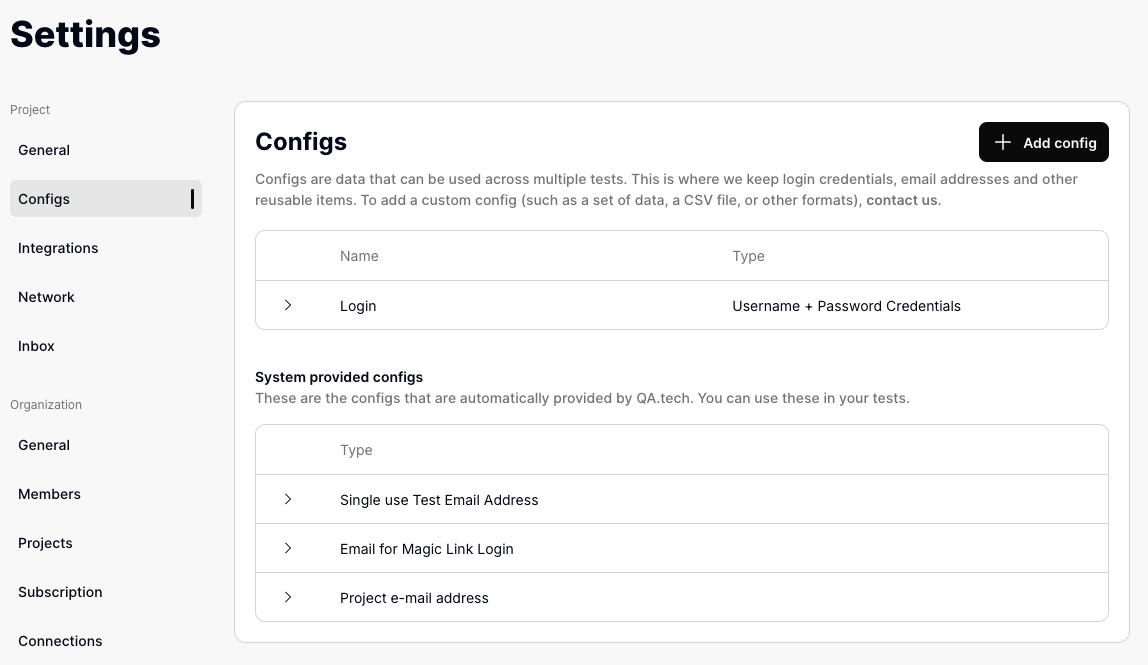
1
Create dedicated test accounts
Provision accounts in staging for each user role you plan to test. Use
credentials that exist only in non-production environments.
2
Confirm login on staging
Log in manually with each test account before kickoff. Fix account, SSO, or
rate-limit issues on your side first.
3
Add credentials to Configs
Go to Settings →
Configs and create
a config for each account. The agent uses these when it encounters login
forms. You can also send credentials to your QA.tech contact to add them
during project setup.
Auth methods that need extra setup
Rate limits
Parallel test runs can trigger authentication rate limits and log users out mid-test. Before running several tests at once:- Review provider rate limits (Supabase, Auth0, Firebase, custom auth)
- Increase limits on staging, or disable aggressive throttling for QA.tech IPs
- See Authentication Rate Limits for Supabase-specific guidance
Bot and WAF protection
If staging sits behind deployment protection or bot detection, configure bypasses before the POC.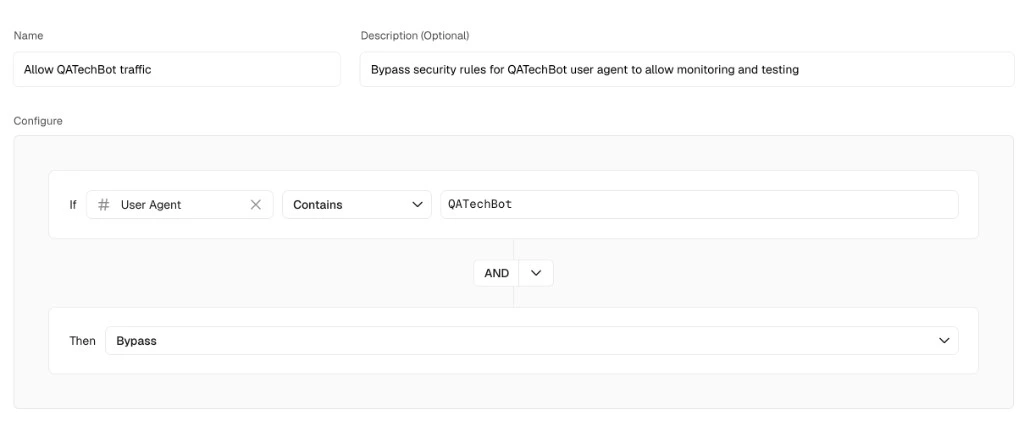
QA.tech project
In the dashboard, create the applications and environments you will test:1
Add applications
Go to Settings → Applications &
Envs. Create
an application for each distinct app (for example, customer frontend vs
admin panel) and add the environment URL.
2
Attach configs
Assign login, email, and API configs to the tests you will run. See
Configs.
3
Optional: device presets
If the POC includes responsive or mobile-web layouts, create device
presets before the kickoff session.
Additional preparation
These items are commonly overlooked and often block POC progress.Crawling and test creation
QA.tech builds a knowledge graph by crawling your application. Before creating tests:- Confirm the features you want to test already exist. The agent cannot test features that have not been built yet. See Creating Tests.
- Run an initial login test, then ask the AI Chat Assistant to crawl after login (for example
/crawlor “Crawl the admin panel”). Past sessions are listed under Settings → Crawling. - Add product context under Settings → Knowledge: terminology, navigation paths, and data conventions.
Site accessibility
The agent uses DOM structure and visual models to interact with your site. Reliability improves when you:- Use semantic HTML (
<button>,<a>) for interactive elements - Add
aria-label,title, andaltattributes where needed
Third-party integrations
If tests involve payment providers, SMS gateways, or external APIs:- Enable sandbox or test modes in staging
- Stub or mock services that cannot run in a test environment
- For UI-based third-party flows (Stripe checkout, OAuth redirects), create a separate application for each domain
Parallel test runs
If you plan to run several tests at once during the POC:- Set Maximum Concurrent Tests on the environment if staging cannot absorb unbounded load. See Parallel Test Execution.
- Configure SSH server
MaxSessionsif you use a tunnel. See SSH Tunnel Proxy. - Use separate email configs for concurrent tests that trigger emails, to avoid inbox collisions. See Email Inbox considerations.
CI/CD (optional for POC)
CI/CD integration is not required to start a POC. Plan ahead if you want to test preview deployments:- GitHub App for PR-based exploratory testing
- GitHub Deployments if you deploy previews from GitHub Actions (not a hosted Vercel/Netlify GitHub integration)
- Regression Testing for staging deploy triggers
- Vercel Preview bypass for protected preview URLs
Confirm everything works
Run this smoke test before the kickoff session:1
Run a login test
Create a test such as: “Log in with the configured credentials and verify
the dashboard loads.” Confirm it passes end to end.
2
Trigger a crawl
Ask the AI Chat Assistant to crawl the
application after login (for example
/crawl or “Crawl after login”).3
Test one email flow
If the POC includes signup, verification, or password reset, run a test that
triggers and reads an email. Confirm delivery in Settings → OS
Tools.
4
Run tests in parallel
Execute 2-3 tests at the same time to surface rate-limit, session, or
email-collision issues before the live session.
Getting help
If you are blocked on any item, contact QA.tech Support or your QA.tech contact with:- The environment URL and how it is protected (public, VPN, WAF provider)
- Which authentication methods your app uses
- Whether email delivery has been verified
- Any error messages or screenshots from failed test runs